Introduction
The Weekly Action Plan feature transforms how you prioritize and execute your sales activities. Instead of starting your week wondering which deals to focus on, Summit53 now provides you with an AI-prioritized action list that identifies your most critical opportunities and recommends specific next steps.
This guide will help you understand how to use this powerful feature to maximize your sales effectiveness.
Getting Started
Accessing Your Weekly Action Plan
- Log in to your Summit53 account
- Navigate to the CRM section in the left sidebar
- Select Weekly Action Plan from the navigation menu
- Your personalized action plan will be loaded automatically
If this is your first time using the feature, you may need to click the "Generate Weekly Plan" button to create your initial plan.
Understanding Your Action Plan
Key Components
Your Weekly Action Plan consists of:
- Prioritized Actions: A ranked list of opportunities that require your attention
- Risk Summaries: Concise explanations of what's missing or at risk for each deal
- Suggested Actions: Specific next steps to address the identified risks
- Progress Tracking: Visual indicators of your weekly completion rate
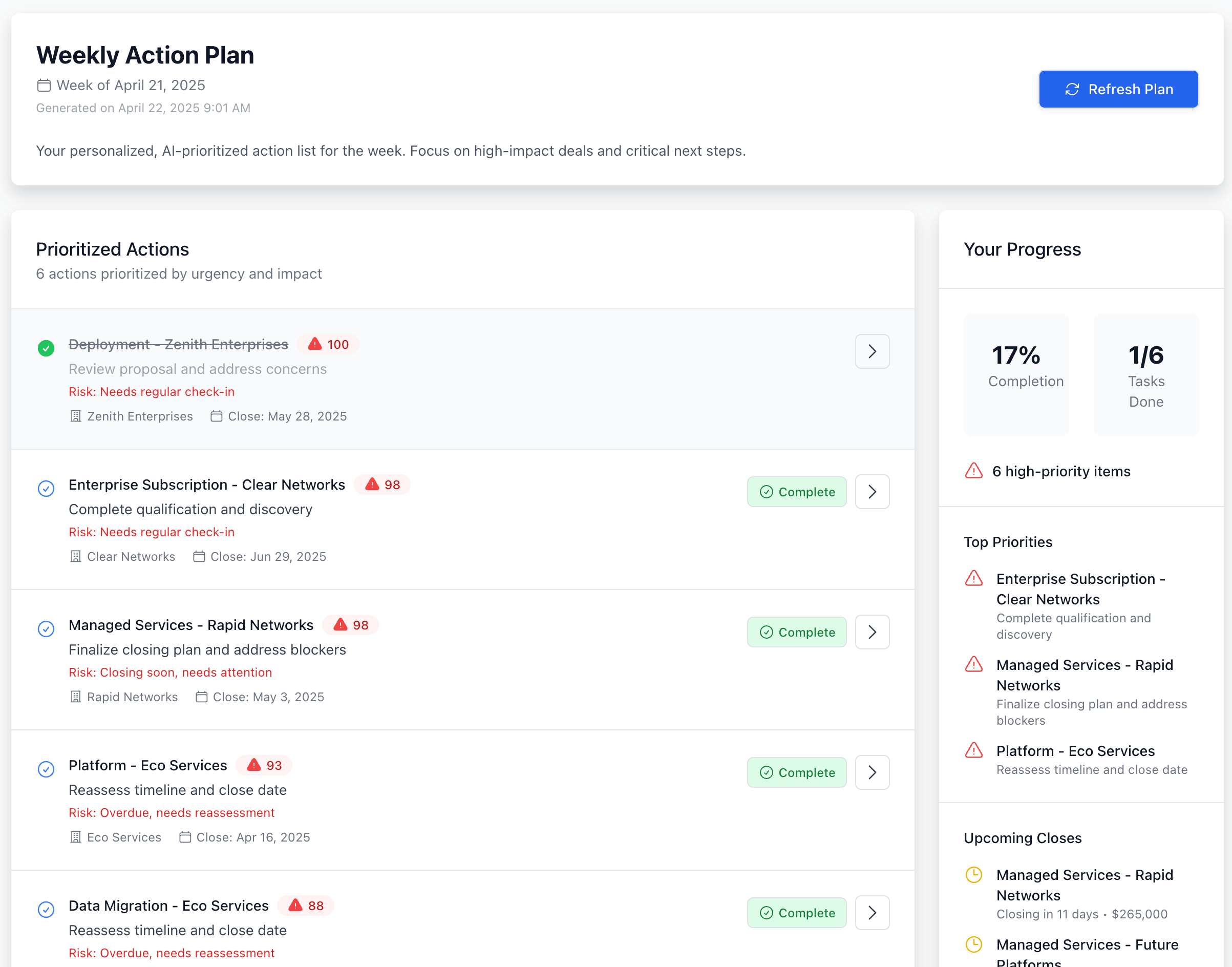
Weekly Action Plan Overview: The main interface showing prioritized actions with risk indicators
How Opportunities Are Prioritized
The AI prioritization engine considers multiple factors to determine which deals need your attention most:
- Deal Value: Higher-value opportunities typically receive higher priority
- Close Timeline: Deals nearing close date get increased priority
- Framework Completeness: Deals missing critical MEDDPIC/BANT components are prioritized
- Contact Freshness: Deals with stale stakeholder interactions receive attention
- Last Touchpoint: Opportunities without recent activity are elevated
- Forecast Category: "Commit" deals receive higher priority than "Pipeline" deals
Understanding Task Types
Your Weekly Action Plan now includes three types of actions, each identified with a visual badge:
| Task Type | Badge | Description | How It's Created |
|---|---|---|---|
| AI-Generated | 🤖 AI | Actions automatically identified by the AI prioritization engine based on your pipeline analysis | Automatically generated each Monday |
| Manual | ✏️ Manual | Custom tasks you create for specific opportunities, accounts, or contacts | Click "Add Task" button or create from opportunity/account detail pages |
| Framework Relationship | 🔗 Framework | Tasks generated from framework relationship insights showing gaps between qualification frameworks | Click "Create Task" on framework relationship cards in opportunity details |
Taking Action
For Each Priority Item
- Review the Risk Summary: Understand what's missing or at risk
- Consider the Suggested Action: Review the AI's recommendation for next steps
- Use the Action Buttons:
- Use Prompt: Generate an AI-crafted email or talking points for the suggested action
- Complete: Mark the action as done when you've addressed it
- Snooze: Temporarily deprioritize the action
- Skip: Remove the action if it's not relevant
- View Opportunity: Jump to the full opportunity details
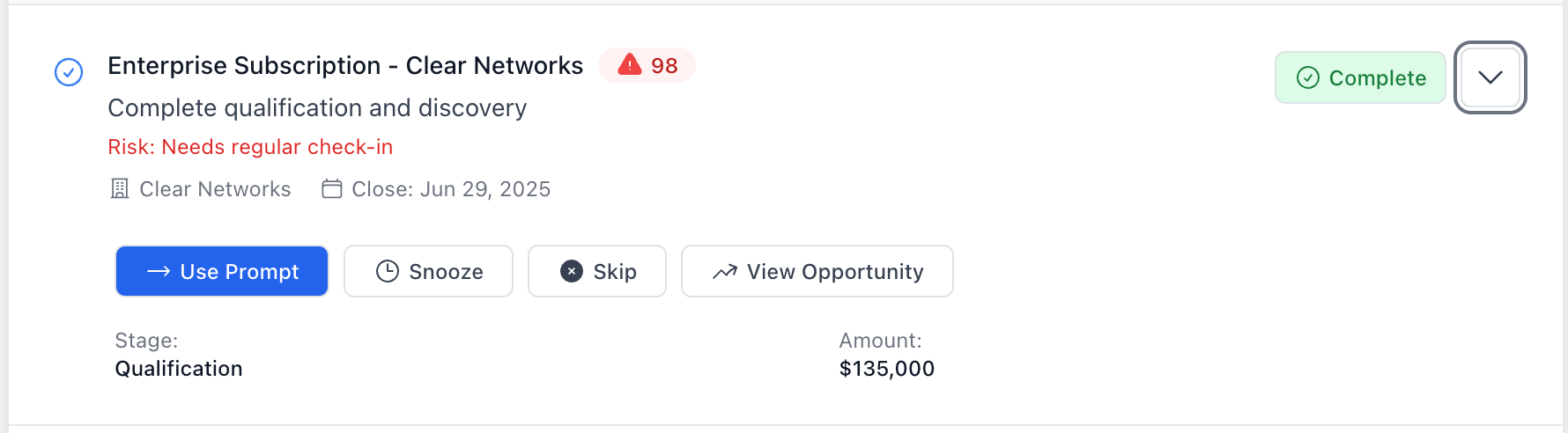
Action Buttons: Each priority item has buttons for managing and responding to the suggested action
Using AI-Generated Prompts
When you click "Use Prompt," the system generates context-specific content based on the action type:
- A modal window will appear with an AI-generated email template or talking points
- This content is specifically tailored to your opportunity's context, including deal details and risk factors
- You can copy the content to your clipboard with one click
- Customize it as needed before sending to your prospect
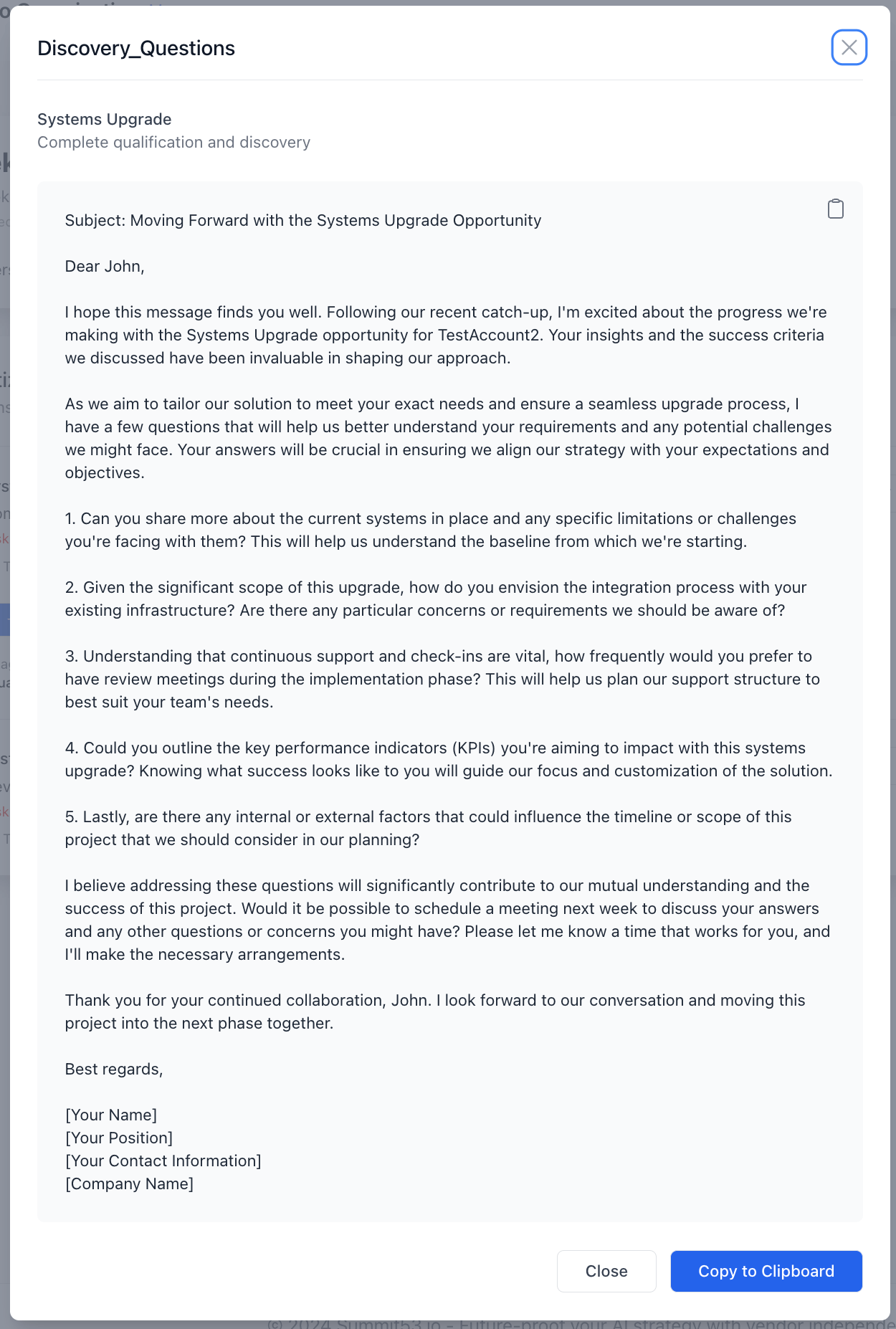
AI-Generated Prompt: Example of a modal window with AI-generated email content
Creating and Managing Your Own Tasks
In addition to AI-generated actions, you can now create and manage your own custom tasks directly within your Weekly Action Plan. This gives you complete control over your sales activities while maintaining a unified view of all priorities.
Creating Manual Tasks
There are multiple ways to create manual tasks:
Option 1: From the Weekly Action Plan Page
- Click the "Add Task" button in the action plan header
- Fill in the task details:
- Task Description: What needs to be done (required)
- Entity: Associate with an opportunity, account, or contact (optional)
- Priority Score: 0-100 (default: 50)
- Urgency Level: High, Medium, or Low (default: Medium)
- Due Date: Target completion date (optional)
- Notes: Additional context or reminders (optional)
- Click "Create Task" to add it to your action plan
Option 2: From Framework Relationship Insights
- Navigate to an opportunity detail page
- Scroll to the Framework Relationships section
- Review the relationship cards showing gaps between MEDDPIC and BANT
- Click "Create Task" on any insight card
- The task is automatically created with:
- Pre-populated action based on the insight
- Priority mapped from the attention level (Critical → High priority)
- Context about the framework gap included in notes
- Link to the source framework relationship
Option 3: From Opportunity or Account Pages
- Navigate to the specific opportunity or account
- Look for the "Create Task" option in the actions menu
- The task will be automatically linked to that entity
Editing and Updating Tasks
You can update the following fields on any task you own:
- Status: Pending, Completed, Snoozed, Skipped
- Notes: Add context, updates, or reminders
- Due Date: Adjust timing as needed
- Priority Score: Re-prioritize based on changing circumstances
- Urgency Level: Escalate or de-escalate as appropriate
Deleting Tasks
Manual tasks can be deleted if they're no longer relevant. Simply click the delete icon on the task card. AI-generated and framework relationship taskscannot be deleted but can be marked as "Skipped" if not applicable.
Task Rollover Behavior
Your action plan refreshes every Monday with new AI-generated priorities. Here's how different task types are handled:
- AI-Generated Tasks: Regenerated fresh each week based on current pipeline state
- Manual Tasks: Incomplete tasks automatically roll over to the next week with a "[Rolled over]" note
- Framework Relationship Tasks: Incomplete tasks roll over until addressed or the framework gap is resolved
Pro Tip: Incomplete manual tasks will roll over automatically, so you don't lose track of important follow-ups across weeks. Aim to complete or update tasks before the week ends to maintain clean rollover lists.
Available Action Types & Prompts
| Action Type | When It Appears | What the Prompt Provides |
|---|---|---|
| Validate business impact with metrics | Missing metrics evidence | Questions to quantify ROI and business value |
| Identify and engage Economic Buyer | Missing Economic Buyer | Email template for reaching economic decision-maker |
| Develop internal Champion | Missing Champion evidence | Talking points to cultivate internal support |
| Re-engage key stakeholders | Stale contacts | Follow-up email templates for dormant relationships |
| Reassess timeline and close date | Overdue opportunities | Discussion guide for timeline realignment |
| Finalize closing plan | Deals nearing close date | Checklist for addressing final blockers |
| Complete qualification and discovery | Early-stage opportunities | Comprehensive discovery questions |
| Validate solution fit | Mid-stage opportunities | Technical validation discussion guide |
| Review proposal | Proposal stage deals | Follow-up questions to address concerns |
| Finalize terms and handle objections | Negotiation stage deals | Templates for addressing common objections |
| Check in and maintain momentum | Standard follow-up | General relationship maintenance templates |
Weekly Workflow
For maximum effectiveness, we recommend this weekly workflow:
- Monday Morning: Review your Weekly Action Plan (10-15 minutes)
- Prioritize High-Impact Items: Focus on red (high-priority) items first
- Track Completion: Mark items as complete as you work through them
- Daily Check-In: Spend 5 minutes reviewing remaining actions each morning
- End of Week Review: Check your completion percentage on Friday afternoon
The plan automatically refreshes each Monday morning with newly prioritized actions.
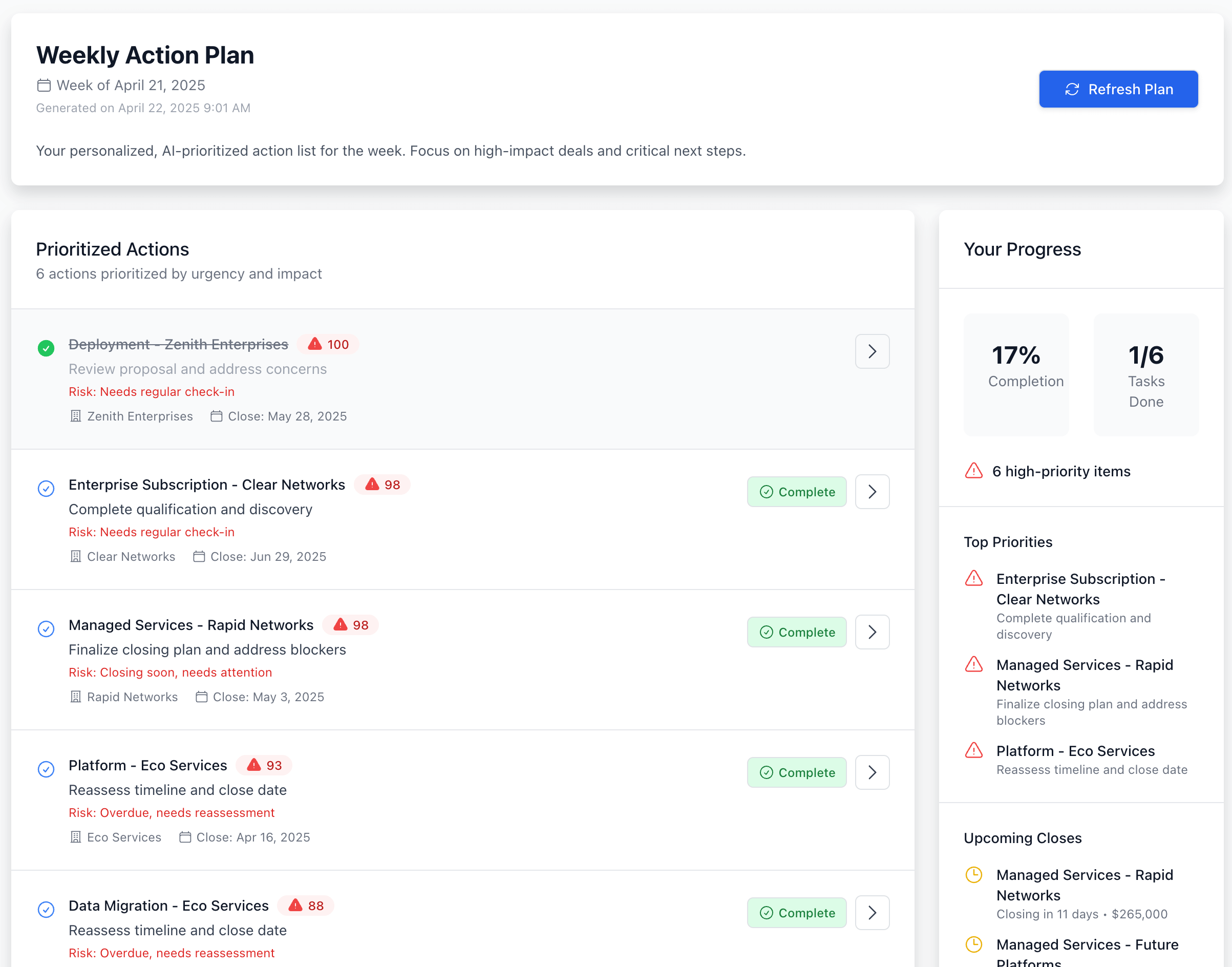
Weekly Workflow: Recommended process for maximizing the effectiveness of your Weekly Action Plan
Manager Insights
For sales managers, the Team Action Plans page provides:
- Visibility into each rep's weekly plan
- Completion rates across the team
- High-priority deals that may need coaching
- Missed actions from previous weeks
Best Practices
- Start with high-priority items: Red/high-urgency actions should be tackled first
- Use AI prompts to save time: The prompt feature can save 15-30 minutes per action
- Personalize all templates: Always customize AI-generated content before sending
- Track your progress: Aim for at least 80% completion rate each week
- Provide feedback: Report any issues or suggestions to help improve the system
Onboarding Plan
Week 1: Introduction & Basic Usage
Day 1: Introduction to Weekly Action Plan
- Review this user guide
- Access your weekly action plan for the first time
- Identify high-priority actions in your current plan
- Mark at least one action as complete
Day 2-3: Working with Action Items
- Practice using the prompt feature for 2-3 priority items
- Customize and send at least one AI-generated email
- Try marking items as complete, snoozed, and skipped
Day 4-5: Integration with Daily Workflow
- Begin your day by reviewing the action plan
- End your day by updating action statuses
- Track your progress toward completion targets
Week 2: Advanced Usage & Optimization
Day 1-2: Mastering Prompt Templates
- Experiment with different action types and their prompts
- Practice customizing templates for your personal style
- Create follow-up sequences based on prompt suggestions
Day 3-5: Analyzing Prioritization & Improving Deal Quality
- Review why certain deals are prioritized higher than others
- Identify recurring risk patterns in your opportunities
- Create a plan to address common framework gaps
Week 3: Measuring Impact & Refinement
Day 1-2: Review Completion Metrics
- Analyze your completion rate from previous weeks
- Identify any bottlenecks in your execution process
- Adjust your daily schedule to improve completion rate
Day 3-5: Feedback & Continuous Improvement
- Provide structured feedback on the prioritization accuracy
- Suggest improvements for prompt templates
- Share success stories and best practices with the team
Ongoing Support
- Weekly tips and best practices via email
- Monthly optimization sessions with sales enablement
- Quarterly reviews of feature impact on sales performance
By following this plan, you'll be fully proficient with the Weekly Action Plan feature within three weeks, transforming your sales execution and productivity.
Getting Help
If you have questions about using the Weekly Action Plan feature:
- Check the Summit53 knowledge base for detailed tutorials
- Contact your sales enablement team: Contact Support
- Submit feedback through the app's feedback form